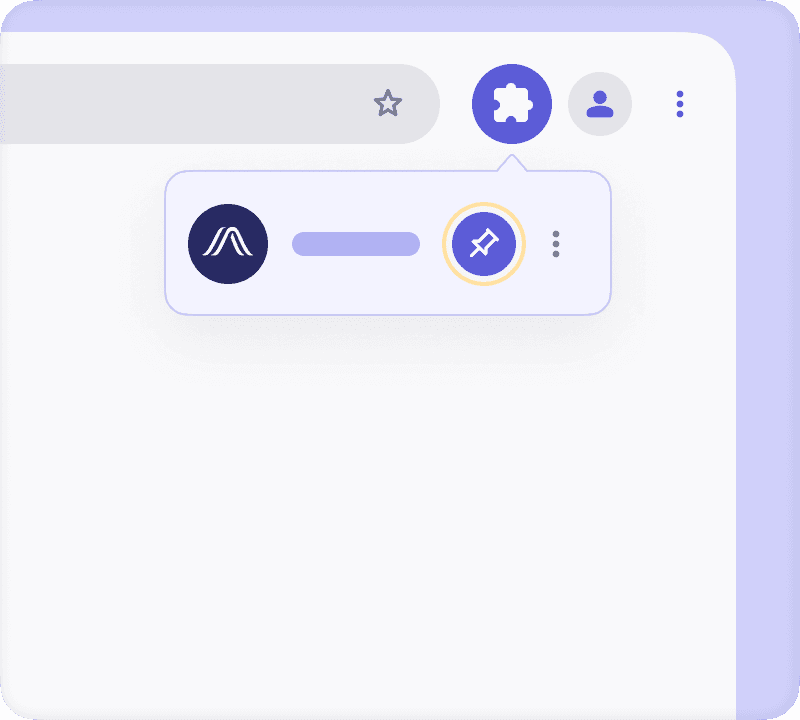
Pin Ambience to your Chrome toolbar for easy access
To pin Ambience to your browser’s toolbar:
Click
in the toolbar.
Click
next to the Ambience row
An Ambience icon will appear in your browser's top right corner. If lost, find the icon to access the extension again.
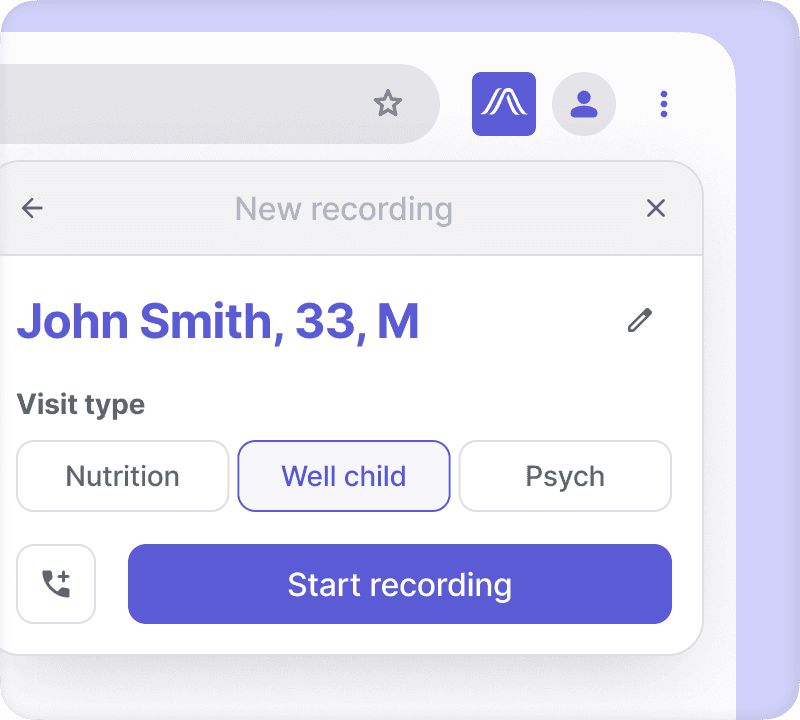
Open the extension while viewing the patient chart
Ambience pulls the patient’s name, sex, and age automatically.
Choose the visit type to get the note formatted exactly how you want it.
You can also call your patient directly from Ambience to capture a phone visit.
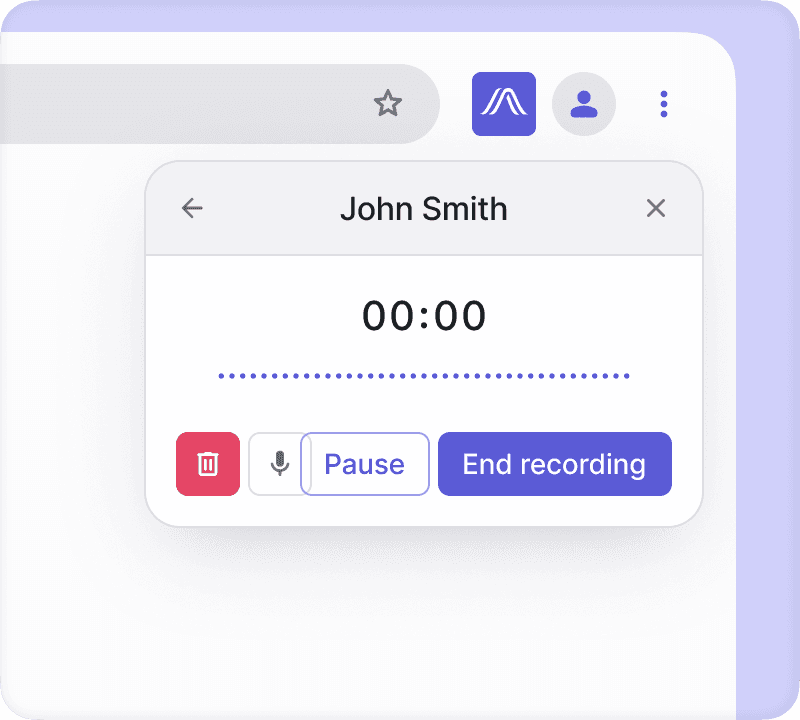
Recording your visit
Press to record the patient visit and check that the microphone works by seeing if the volume bar moves.
Record on Ambience during pre-charting to create a note from this information. Begin recording before the appointment and pause it to continue during the visit.
Ensure the microphone isn't blocked and place the device near both you and the patient for proper recording.
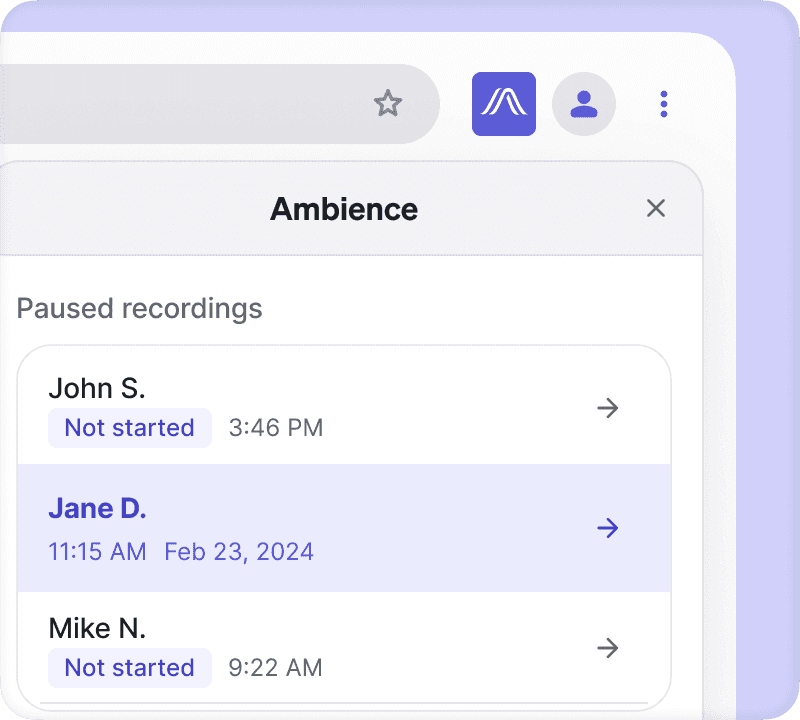
Switching between patient recordings
Easily switch between unlimited patient recordings throughout the day.
Helpful for pre-charting multiple patients in one session.
Useful when seeing many patients at once.`
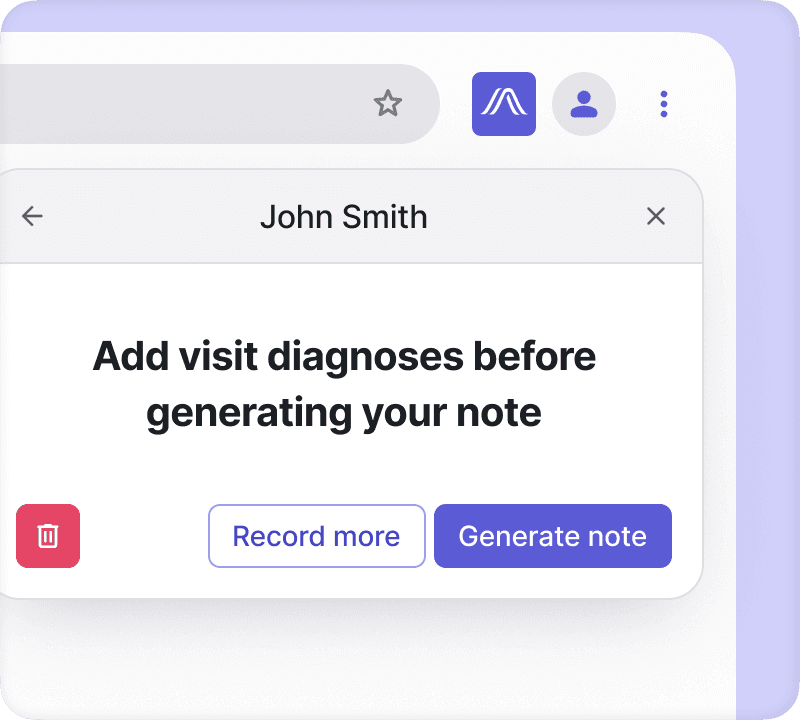
Synching visit diagnoses to build your assessment & plan
Ambience can pull in existing diagnoses in the patient chart
Add more diagnoses on Ambience's website using the ICD 10 Assistant or the ICD-10 search bar.
New ICD 10 codes will automatically update in the patient's chart when you push the note.
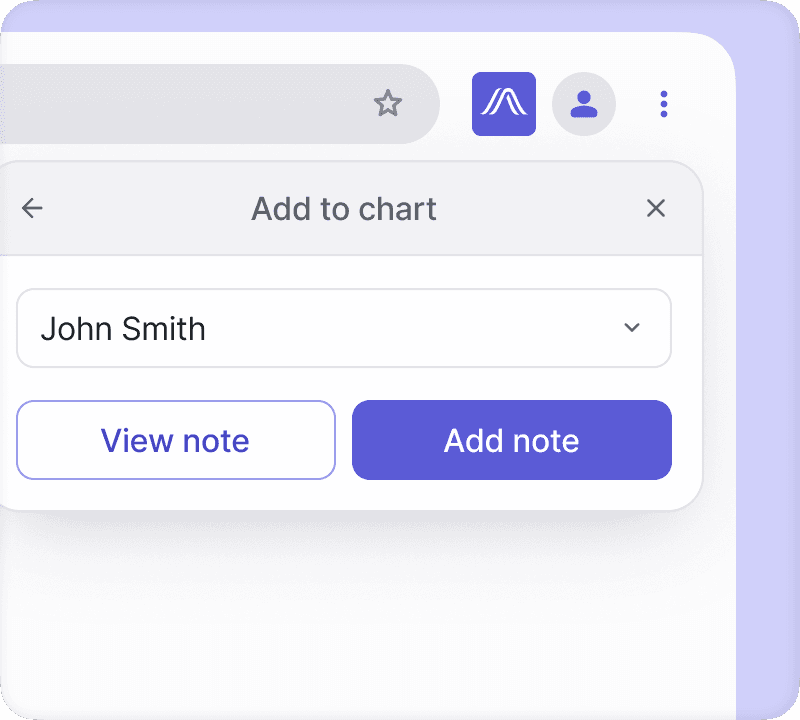
Adding your note into the patient chart
To add an Ambience note to the patient's chart, go to the progress note and click "Add to Chart".
Ambience will prompt you to add the latest note for the patient's chart.
To add a different note, click the drop-down and select or search for the desired note.